An Introduction to Obsidian for Writers
An introduction to the ultimate note-taking app.
Obsidian is a note-taking system where you can :
Link anything and everything — ideas, people, places, books, and beyond. Invent your own personal Wikipedia.
I think it's the best thing I've found yet for recording thoughts, ideas and links to resources. It is similar to the zettelkasten method of notetaking - you create links between notes and find what you want through links and tags, using the powerful search function.
It stores the notes on your computer in the markdown format - so, completely portable for you. They are also private. Or you can also publish your Obsidian wiki (or selected parts of it to the web) which is great for SEO. Here is an introduction to SEO for writers and artists.
There's a YouTube video below, which covers Obsidian essentials, which is probably the best way to get up and running quickly. It's about ten minutes long.
I have also written post on How to Write a Novel in Obsidian, Organising your Obsidian notes, Publishing your Obsidian Vault and A Zotero to Obsidian Workflow.
Jump to a Section
- Download Obsidian and set up your vault
- How to create and link Obsidian Notes
- Tagging in Obsidian
- Other essential Obsidian formatting info
- The Obsidian Graph View
- Obsidian Basic Formatting Actions Cheat Sheet
- Organising your Obsidian Notes
- Maps of Content in Obsidian
- The Zettelkasten Method for Organising Your Obsidian Notes
- Using Universal Decimal Classification to Organise Your Folders
- Obsidian Canvas
- Obsidian link to Zotero
- YouTube video
Download Obsidian and set up your vault
It is free on one computer. You can upgrade to sync between devices. You can download at https://obsidian.md.
When you begin, it'll ask you to create a vault. This is the main folder for your work. Vaults don't talk to one another - they don't share internal links. And so it's something to think hard about. Most people have one vault with folders, to begin with at least.
Another important thing - the viewing modes. Top right menu - there are two icons - a book and a pen. These are reading mode and editing mode - please note, the icon shows you what you will switch to!
You can create folders for your notes. Looking online, everyone has their own way of doing this. I think the best way would be to let what you write guide any folder structure. Just start writing notes and see where it goes.
How to create and link Obsidian Notes
Then you can start making notes and ordering them in folders (or however you want - you can always just use the powerful search function to find things.)
Create a new note
To create a new note - command + N (Mac). CTRL + N (PC)
Add an internal link to another note
To add a link in a note type two square brackets - like this [[ ]]
It opens a list of possible notes to link to.
If you want to create a new linked note from within a note your working in, write some text in your note with two square brackets around it. Then click on thst and it opens a new note to work on, which is already linked.
Create external links
To create external links - type text surrounded by one square bracket on either side. Then put the URL directly after it in normal brackets.
To see the full text and the url link, click on the line beside the text.
Tagging in Obsidian
This deserves quite a lot of thought, especially if you are thinking of publishing down the line. At the moment I have opted for the folder names in the vault to match the tags on my website, and also to match the top-line tags in Obsidian.
To add a tag : type hash and it gives you list of options to choose from of pre-existing tags. Or you can add a new one.
#obsidian #seo #zettelkasten
Click on a tag and it shows all notes with the tag in the search results. Top right, there is also a menu icon where you can search all your tags.
You can add multiple tags to a note - some subjects will touch on multiple areas. You can also nest tags, for example you could have #digital-writing/obsidian.
Ways to approach Obsidian Tags
Here are a few approaches to using tags in Obsidian to consider.
Some people don't use tags at all. They feel that between the folders, linking between notes and Maps of Content, that tags aren't needed.
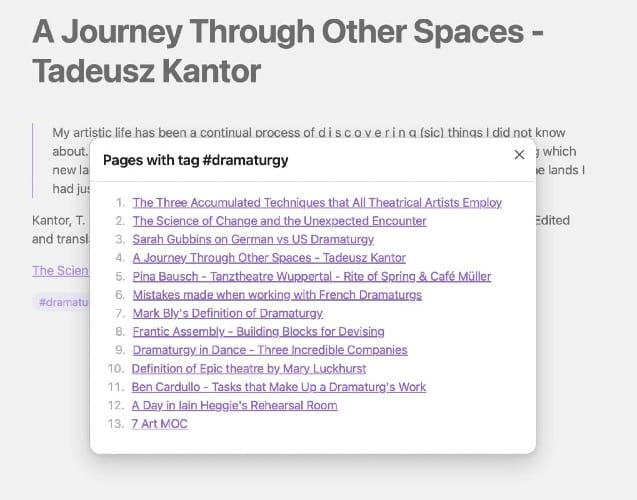
However, if you are publishing using Obsidian Publish, tags are a really nice feature where a reader can click on a tag, and a box with all the posts with the tag appears. Here is an example.
Tags as one of the Four Pillars of Navigation
Tags are one of the main ways to navigate the notes as well as the folder structure, links between notes and Maps of Content.
I found it hard at first to make these four pillars work together. Initially I just mapped the tags to my folders, but that felt like unnecessary doubling up.
The way I now organise these different pillars is as follows.
- Folders. I use the Universal Decimal Classification (UDC) system for organising folders, so I know that no matter how many notes in different subjects I add, the system is sound.
- MOCs. I use Maps of Content, as a given note can be relevant in different subject areas.
- Note Linking. Linking between the notes themselves, which lets you move horizontally across the notes - moving from subject to subject.
- Tags. These let you move vertically - going deeper into a given subject.
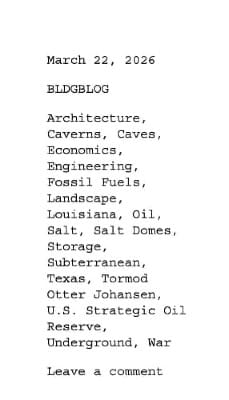
I then borrowed an approach from some blogs I really like as regards tagging, blogs like BLDG BLOG and The Marginalian. I don't go as far as they do, though.
They use a large number of tags, sometimes tagging things for which there is only one entry. It's like a future place-marker as they build their latticework of blog posts.
By focusing on tags as broad topic buckets rather than rigid categories, it frees you from having to make constant decisions about how many tags to use and what to call them, to being a powerful navigation system for your reader.
The links between notes allow you to go from note to note - often across subjects. Tagging like this allows you or your reader to explore notes within a given subject.
So you have two different exit points from a note, both of which have different purposes. Links are your horizontal navigation. They let you jump across disciplines. Tags are your vertical navigation, they let you dig deeper into a specific subject.
And, importantly, it gets rid of 'tag stress'.
Other essential Obsidian formatting info
Formatting headings
Add ## immediately before some text to get heading two. then press return.
Format a block quote
to format a block quote
add > at the start of it.
Using backticks in Obsidian
Using single backticks (`) - one on each side of a line of text - displays the text exactly as written and prevents formatting from being applied.
Three backticks on either side is more for blocks of text, and does also shows your words exactly as written.
Adding footnotes in Obsidian
You simply put this after the quote [^]. A dialogue box opens which you can add the citation to and it appears at the bottom of the page. You can also edit the citation text there.
The Obsidian Graph View
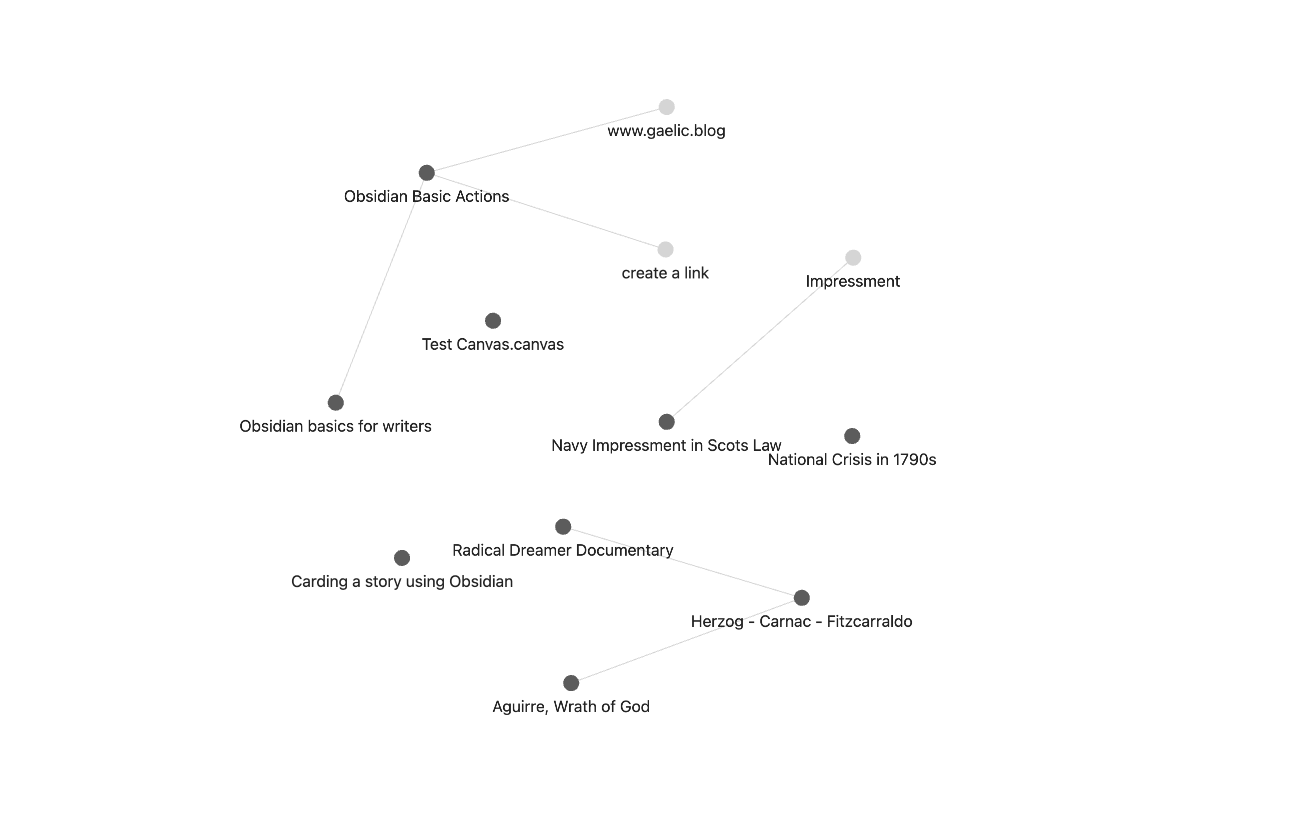
You can see also view the 'graph view' of your notes - which turns it into a mind map. It shows how your ideas connect.
You can click on any of the nodes in the graph view and it takes you to the note. Here is an image of the graph view off a vault I've just started.
obsidian-graph-view-small-nodes.pngObsidian Basic Formatting Actions Cheat Sheet
Here is a downloadable Markdown file you can use in your Obsidian with the main formatting commands that you need.
If you'd rather not download files from the websites of strangers on the internet, here is the text.
Obsidian Basic Formatting Actions Cheat Sheet - Text
Here is an overview of How to Start with Obsidian. Obsidian uses Markdown, which is just a few simple symbols you can use that tell it how to format things.
Do not let mentions of using markdown put you off. After reading this short note, you'll have all you need to work in Obsidian. A lot of online tutorials go into real depth about it. The following is all you really need to know.
Remember! Top right - reading mode (the wee book) and editing mode (the editing mode) - shows you what you WILL switch to! Not the mode you are in.
Create a new note in Obsidian & link to to other notes
To create a new note - command + N (Mac)
To add a link in a note type two square brackets (it opens up the closing square brackets)
[[]]
It also opens a list of possible notes to link to.
Add some tags...
To add tags - type hash and it gives you list of options or you can add a new one. Like:
#directing
Create a new linked note on the fly
If you want to create a new linked note, write some text in your notes with two square brackets around it. Then click on it and it opens a new note to work on, which is already linked.
For example I would write:
[[How to create links in Obsidian]]
and it would look like this:
[[How to Create Links (Internal & External) in Obsidian]]
Create external links in Obsidian
To do external links - type text surrounded by one square bracket on either side. Then the link directly in normal brackets. To see the full link, click on line beside text.
Click on a tag and it shows all notes with the tag in the search results.
How to add headings
Add ## to get heading two. then take cursor away i.e.
## Heading Two
will look like this :
Heading Two (two hash symbols)
And so on...
Heading Three (three hash symbols)Heading Four (four hash symbols)
And now for some other really useful commands to know.
Format a block quote
to format a block quote
add > at the start of it.
How to add footnotes in Obsidian
You simply type [^] - a dialogue box opens up and you type your citation there (or in the text at the bottom after the wee number)
How to write something where you want the formatting ignored
Sometimes you want to write things where you make the markdown commands visible,
Just add one backtick `on either side of text - if it's in one line.
Or three backticks ``` on either side of a block of text, and it will allow you to do this.
There you go! You've learnt the main markdown commands that you need!
Organising your Obsidian Notes
There is a whole Obsidian Influencer Industrial Complex online with vanloads of advice as how to organise your notes.
Some thought on how to organise your notes is good, but not too much, or I find obsessing over it takes over from the writing.
The main tension is this. We are so used to using folders on computers that it is our default organisational behaviour.
Say you have folders for Writers, Myth and Sci-Fi. You write an article on George Lucas' inspiration for the narrative structure of Star Wars (The Hero with a Thousand Faces). Which folder do you put that in? Even using sub-folders doesn't get rid of that tension.
But that is why Obsidian is so good. Its search function is incredible, returning files with the search term in it as well as tags. And once you have an entry point ie a notes, the internal links are your way into the subject.
The main advice I found helpful was to let your writing guide the structure, rather than putting a folder system in place first and then filling it. And I try and keep the folder system no more than three deep. Writing : Film : Star Wars.
And then I use Maps of Content (MOCs) - an idea which comes from ACE.
Using ACE as a way to organise Obsidian Notes
ACE is a method of organising your notes, invented by Nick Milo, who has a YouTube Channel called Linking your Thinking. He's like the Tiago Forte of Obsidian.
ACE stands for Atlas, Calendar and Efforts. The Atlas is where you put your Maps of Content, Calendar for time-based notes and Efforts for project-based notes.
I have't fully adopted ACE yet. I find it introduces a little cogitive load, always having to decode the words… "efforts… that's…what again…?" But I have borrowed one thing from it. Maps of Content.
Maps of Content in Obsidian
A Map of Content is like the home note of a particular topic. It's like a pillar note, in the same way you get pillar pages. It's the magic sauce.
You add links to all the relevant notes for a topic into the MOC of your choosing. For example...
Star Wars MOC - could have links to notes like 'George Lucas Director', 'Joseph Campbell', 'Wookie - a grammar primer', and so on.
And the great thing is your notes can live in as many MOCS as you like. So you just choose a folder for your note, put it there, and let the MOCS do the work.
'Wookie - a Grammar Primer' could be in your Linguistics MOC, your Invented Languages for my Sci-Fi novels MOC (I know someone who does this!) and your Haircare MOC.
So I do use Atlas as a folder for my MOCs, just because that puts it first in the hierarchy. But otherwise, I put notes into a handful of folders (I limit this to as few as possible and never more than three deep).
Another option would be divide notes into two folders, like the zettelkasten method. Notes on things and notes on your ideas about things.
Here is an example of a top folder structure which is a bit zettlekasten-y.
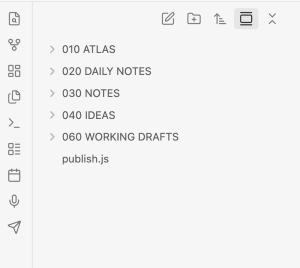
Atlas is first as it contains all the Maps of Content. Notes are the finished notes. Ideas, the ideas the notes trigger for me, aren't published. Working drafts are at the bottom as it's where I work most. The publish.js file is a pain. It's to add Plausible Analytics to Obsidian. I can hide folders in Obsidian Publish on the site, but not on the app.
I'll now go over the Zettelkasten method of organising your notes, and also how to use the Universal Decimal Classification System to organise your folders
The Zettelkasten Method for Organising Your Obsidian Notes
Zettlekasten is German for "box of notes". A German sociologist, Niklas Luhmann, used it to turn him into an academic powerhouse and productivity Jedi.
He had two boxes. One was for finding and one was thinking.
He had one box of notes called "Bibliografie" (Bibliography). And he had a second box which he called "Hauptsammlung." This mean 'main box' in German. This is where he developed his ideas and theories.
He had a system of numbering and linking, and he used keywords. He didn't have any folders. Here is a link to Niklas Luhmann's Zettelkasten Archive.
Where Obsidian wins against a physical system, is in backing up. Imagine you spend years working on this and it was lost in a fire or something. Bad stuff happens. Back up your precious work in at least two places, and not the same physical location.
Using Universal Decimal Classification to Organise Your Folders
I would try and find some kind of shape my Obsidian folders, but then have to re-do my folder structure as the notes grew. I needed something which I knew would be able to grow over time. So I thought, how do the experts do it? How would a librarian do it?
Finally I've landed on a future-proof method of organising folders in Obsidian - the Universal Decimal Classification method (UDC).
I write about this in the post A Future-Proof Method for Organising your Obsidian Folders.
Obsidian Canvas
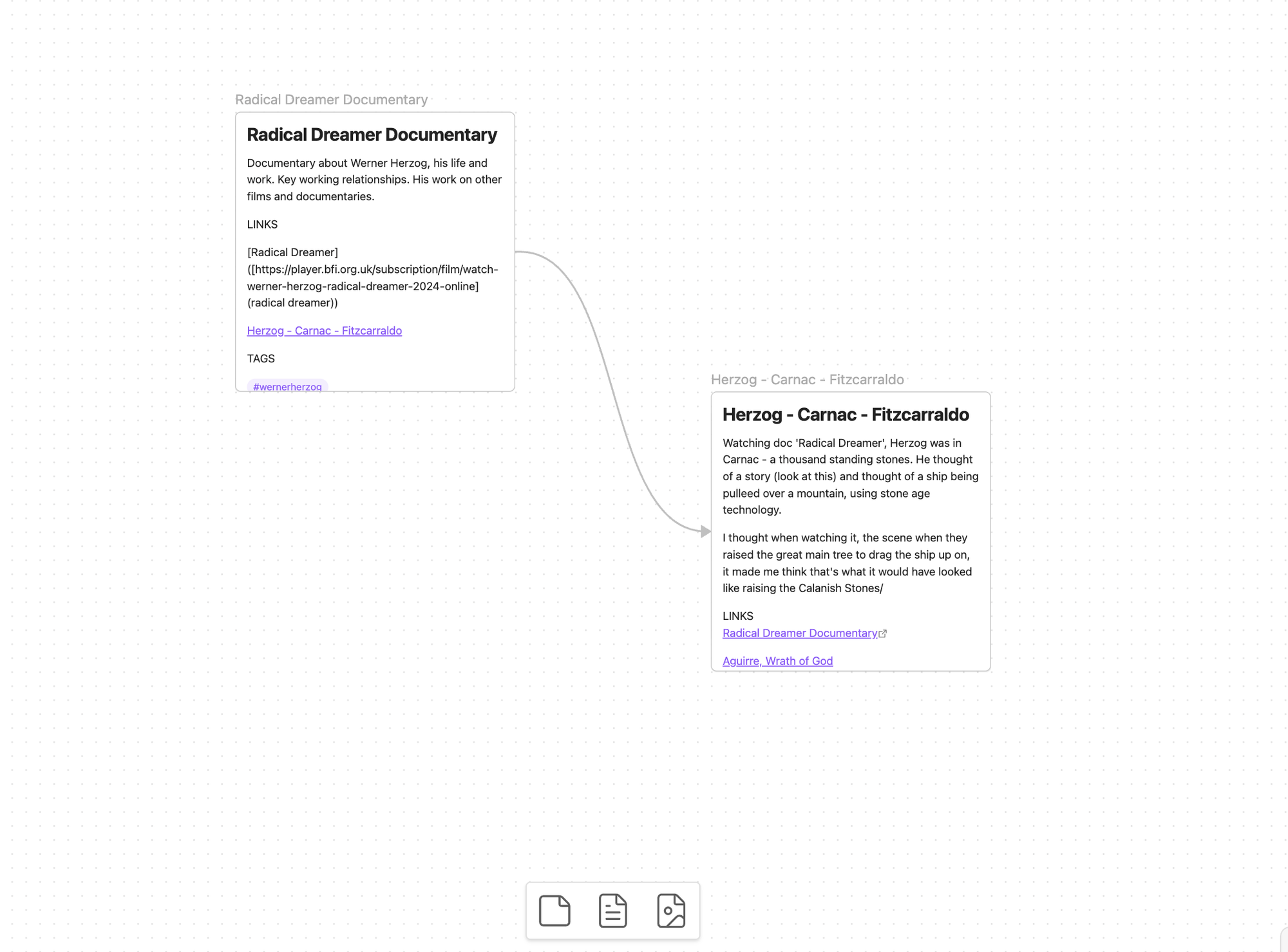
Canvas (menu icon is in the top left), creates an area similar to what you have on Miro. It is a limitless canvas on which you can drag and link your notes.
This might be a good tool for writers to help card a story. (I wrote a post about carding stories on the blog.) This is what it looks like.
Obsidian link to Zotero
It also links to Zotero - the app where you can read pdfs, highlight quotes and it exports them with the correct citations. And when you add the correct Zotero backlink, it takes you back to the source document. Amazing.
Here is a post I wrote about how to do this - A Zotero to Obsidian Workflow.
YouTube video
The easiest way to get up and running it to watch this video. You'll come away with enough knowledge to get up and running to start creating your own personal wiki.
Obsidian and Claude Cowork
An interesting workflow if using Obsidian with Claude Cowork. I've written about getting started with Claude Cowork - an amazing tool, but a tool one has to be careful when using it - how it handles your data privacy has a long way to go. I use this workflow mainly for grant writing.
Frequently Asked Questions about Obsidian
What is Obsidian and how does it work?
Obsidian is a note-taking system where you can link ideas, people, and resources to invent your own personal Wikipedia. It stores notes on your computer in Markdown format, ensuring your data is private, portable, and searchable.
Is Obsidian free to use?
Obsidian is free to download and use on one computer. You can download it at obsidian.md. Users have the option to upgrade to a paid service to sync their vault between multiple devices.
What are Maps of Content (MOCs) in Obsidian?
A Map of Content (MOC) is a "home note" or pillar note for a specific topic. Instead of relying solely on folders, you link all relevant notes to an MOC, allowing a single note to live in multiple contexts simultaneously.
How do you create an internal link in Obsidian?
To add an internal link in Obsidian, type two square brackets [[ ]]. This opens a list of existing notes to link to. You can also create a new note by typing a title inside brackets and clicking the resulting link.
What is the Obsidian Graph View?
The Graph View is a visual representation of your notes that functions like a mind map. It shows how your ideas connect across your vault, allowing you to click on nodes to navigate directly to specific notes.