Obsidian for Writers
An introduction to the ultimate note-taking app.
Obsidian is a note-taking system where you can :
Link anything and everything — ideas, people, places, books, and beyond. Invent your own personal Wikipedia.
I think it's the best thing I've found yet for recording thoughts, ideas and links to resources. It is similar to the zettelkasten method of notetaking - you create links between notes and find what you want through links and tags, using the powerful search function.
It stores the notes on your computer in the markdown format - so, completely portable for you. They are also private. Or you can also publish your Obsidian wiki (or selected parts of it to the web) which is great for SEO. Here is an introduction to SEO for writers and artists.
There's a YouTube video below, which covers Obsidian essentials, which is probably the best way to get up and running quickly. It's about ten minutes long.
In this post:
- Download Obsidian and set up your vault
- How to create and link Obsidian Notes
- Other essential Obsidian formatting info
- The Obsidian Graph View
- Obsidian Canvas
- Obsidian link to Zotero
- YouTube video
Download Obsidian and set up your vault
It is free on one computer. You can upgrade to sync between devices. You can download at https://obsidian.md.
When you begin, it'll ask you to create a vault. This is the main folder for your work. Vaults don't talk to one another - they don't share internal links. And so it's something to think hard about. Most people have one vault with folders, to begin with at least.
Another important thing - the viewing modes. Top right menu - there are two icons - a book and a pen. These are reading mode and editing mode - please note, the icon shows you what you will switch to!
You can create folders for your notes. Looking online, everyone has their own way of doing this. I think the best way would be to let what you write guide any folder structure. Just start writing notes and see where it goes.
How to create and link Obsidian Notes
Then you can start making notes and ordering them in folders (or however you want - you can always just use the powerful search function to find things.)
Create a new note
To create a new note - command + N (Mac). CTRL + N (PC)
Add an internal link to another note
To add a link in a note type two square brackets - like this [[ ]]
It opens a list of possible notes to link to.
If you want to create a new linked note from within a note your working in, write some text in your note with two square brackets around it. Then click on thst and it opens a new note to work on, which is already linked.
Create external links
To create external links - type text surrounded by one square bracket on either side. Then put the URL directly after it in normal brackets.
To see the full text and the url link, click on the line beside the text.
Adding tags
This deserves quite a lot of thought, especially if you are thinking of publishing down the line. At the moment I have opted for the folder names in the vault to match the tags on my website, and also to match the top-line tags in Obsidian.
To add a tag : type hash and it gives you list of options to choose from of pre-existing tags. Or you can add a new one.
#obsidian #seo #zettelkasten
Click on a tag and it shows all notes with the tag in the search results. Top right, there is a menu icon where you can search all your tags.
I think nesting tags is a good idea for organisation, so you don't have a main tag menu of hundred of tags. And so you could have #digital-writing/obsidian instead. And it keeps your list of tags neat (there is a drop-down arrow to see the rest of the nested tags.)
And likewise - I'm aiming for them not to be too deep so they are readable i.e
not #history/neolithic/stone-circles/calanais
Other essential Obsidian formatting info
Formatting headings
Add ## immediately before some text to get heading two. then press return.
Format a block quote
to format a block quote
add > at the start of it.
Using backticks in Obsidian
Using single backticks (`) - one on each side of a line of text - displays the text exactly as written and prevents formatting from being applied.
Three backticks on either side is more for blocks of text, and does also shows your words exactly as written.
Adding footnotes in Obsidian
You simply put this after the quote [^]. A dialogue box opens which you can add the citation to and it appears at the bottom of the page. You can also edit the citation text there.
The Obsidian Graph View
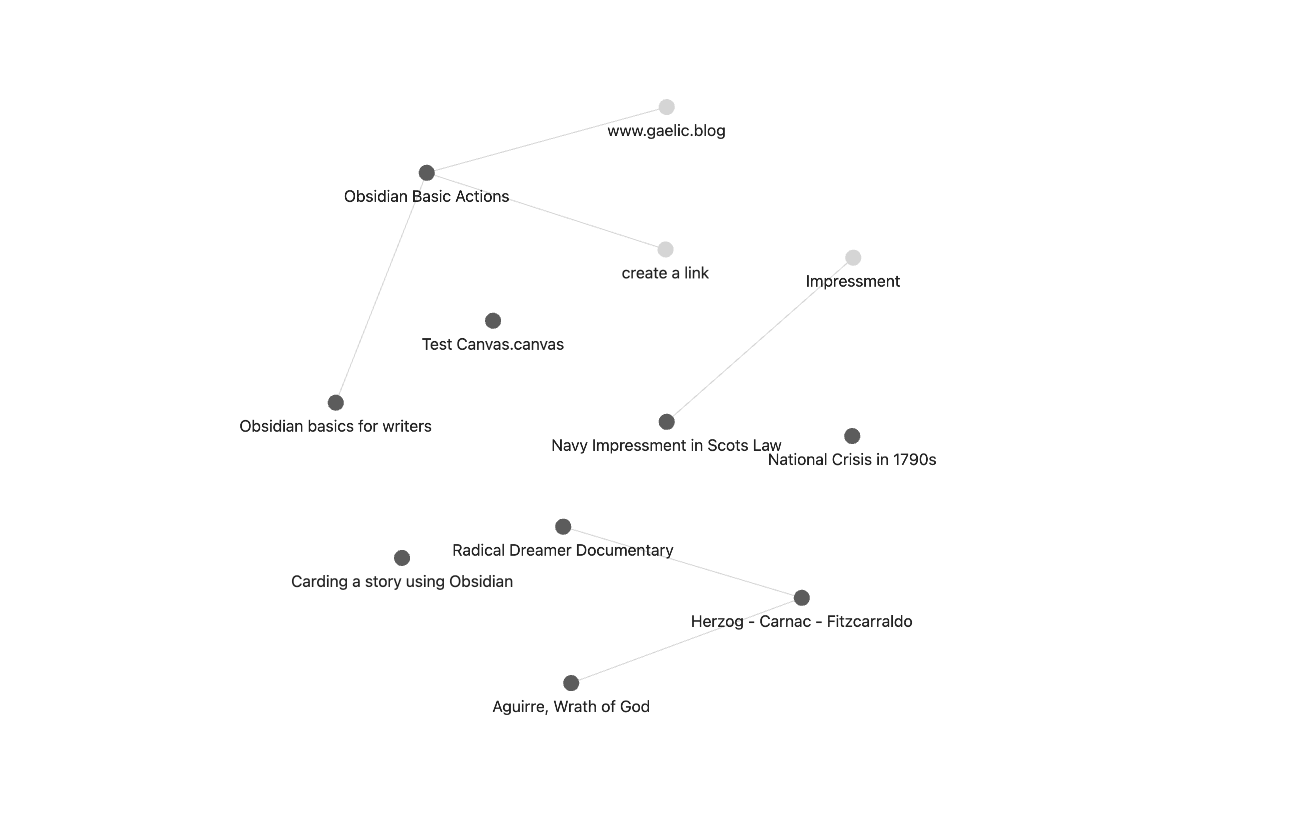
You can see also view the 'graph view' of your notes - which turns it into a mind map. It shows how your ideas connect.
You can click on any of the nodes in the graph view and it takes you to the note. Here is an image of the graph view off a vault I've just started.
Obsidian Canvas
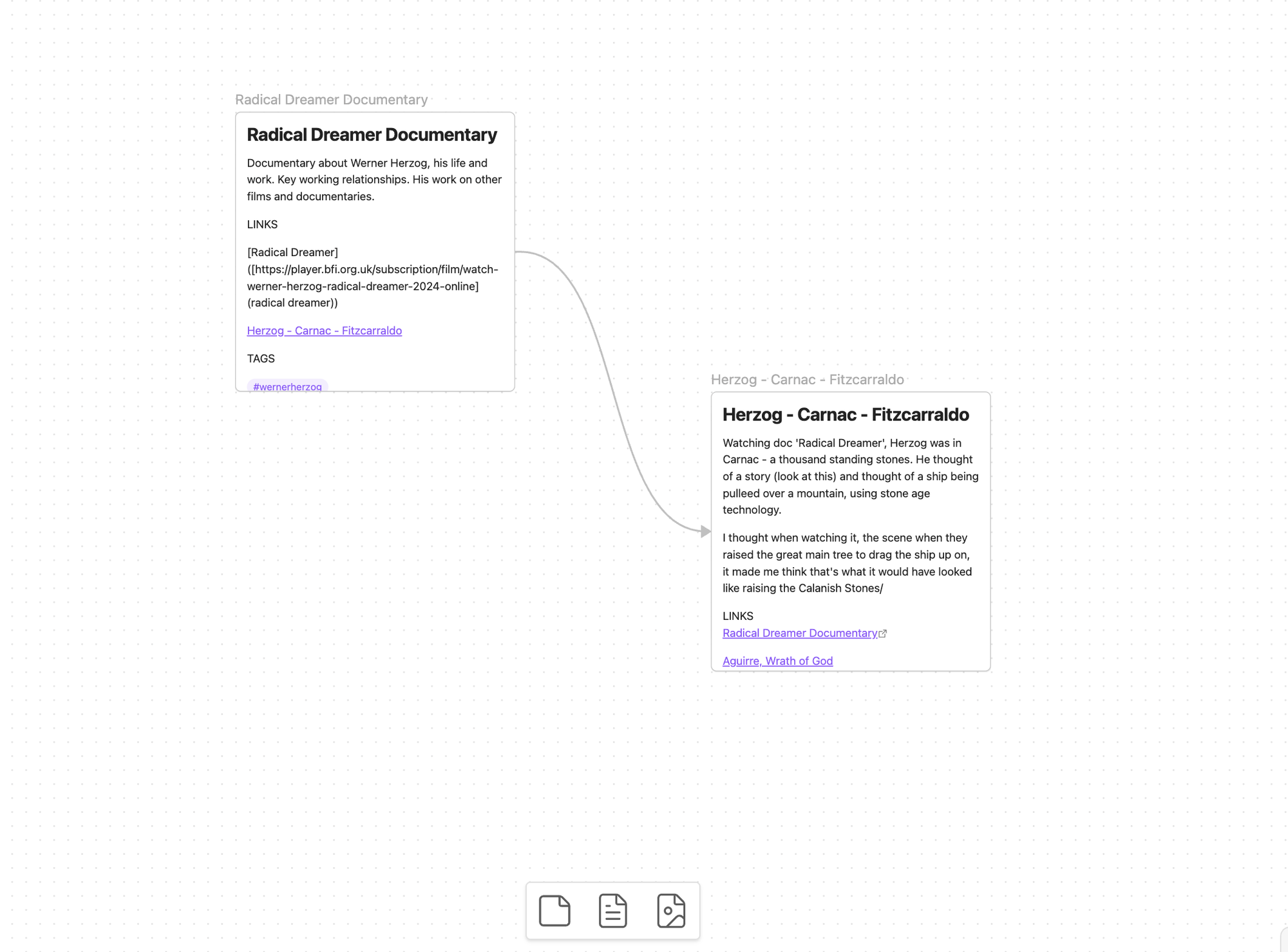
Canvas (menu icon is in the top left), creates an area similar to what you have on Miro. It is a limitless canvas on which you can drag and link your notes.
This might be a good tool for writers to help card a story. (I wrote a post about carding stories on the blog.) This is what it looks like.
Obsidian link to Zotero
It also links to Zotero - the app where you can read pdfs, highlight quotes and it exports them with the correct citations. And when you add the correct Zotero backlink, it takes you back to the source document. Amazing.
YouTube video
The easiest way to get up and running it to watch this video. You'll come away with enough knowledge to get up and running to start creating your own personal wiki.